In vehicle type-approval projects, matching the right document to the right vehicle is the most critical step. In ARPRO, type-approval documents are kept in a central pool; each document is recorded with its brand, model and technical specs, and its usage is tracked when linked to a project. This guide explains how to manage type-approval documents.
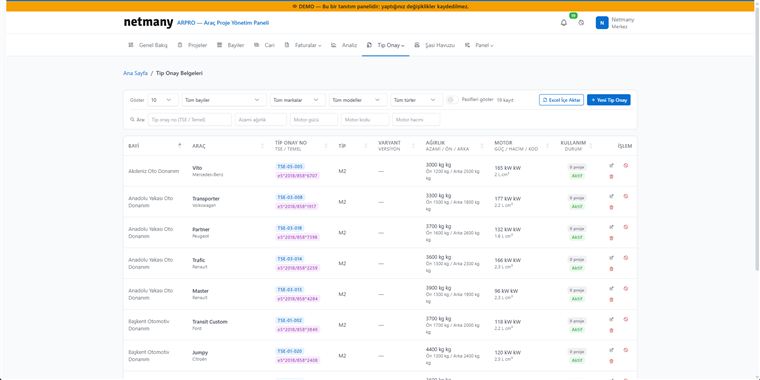
On the Type Approval → Type-Approval Documents screen, all documents are listed. Each row shows the dealer, vehicle (brand/model), type-approval number (TSE / base), type (e.g. M2), weight (max/front/rear), engine (power/capacity/code) and usage/status. You can search by brand, model, type or engine.

Enter documents one by one with New Type Approval, or upload them in bulk with Import from Excel. Filling in the technical fields (weight, engine, type) completely makes later vehicle matching and reporting easier.
While creating a project, a type-approval document matching the vehicle’s brand and model is linked. How many projects a document is used in appears in the “usage” column; its active/passive status shows whether it’s current. So every vehicle proceeds with a valid, correct document.
If you’d like to see the type-approval pool with your own vehicle and project structure, let us set up a custom demo.