In completed projects, the share the dealer must invoice to the centre is often overlooked. ARPRO’s Dealer Invoices screen compares expected and issued amounts and shows the missing shares at a glance. This guide explains how to do this tracking.
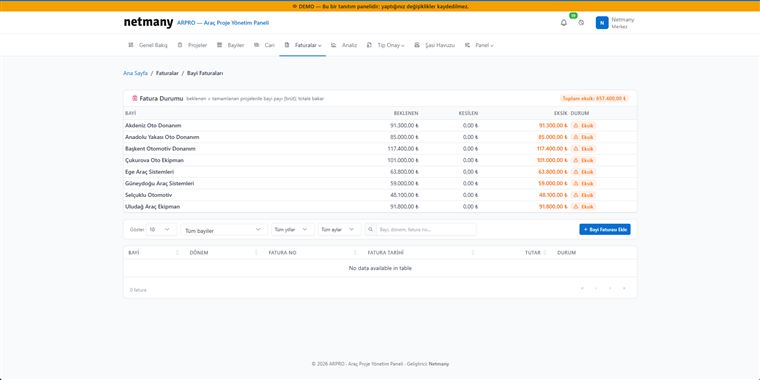
On the Invoices → Dealer Invoices screen you see three columns for each dealer: Expected (the dealer’s share in completed projects, gross), Issued (invoices actually issued) and Missing (the difference). The total missing amount is summarised at the top; which dealer is how far behind is immediately clear.
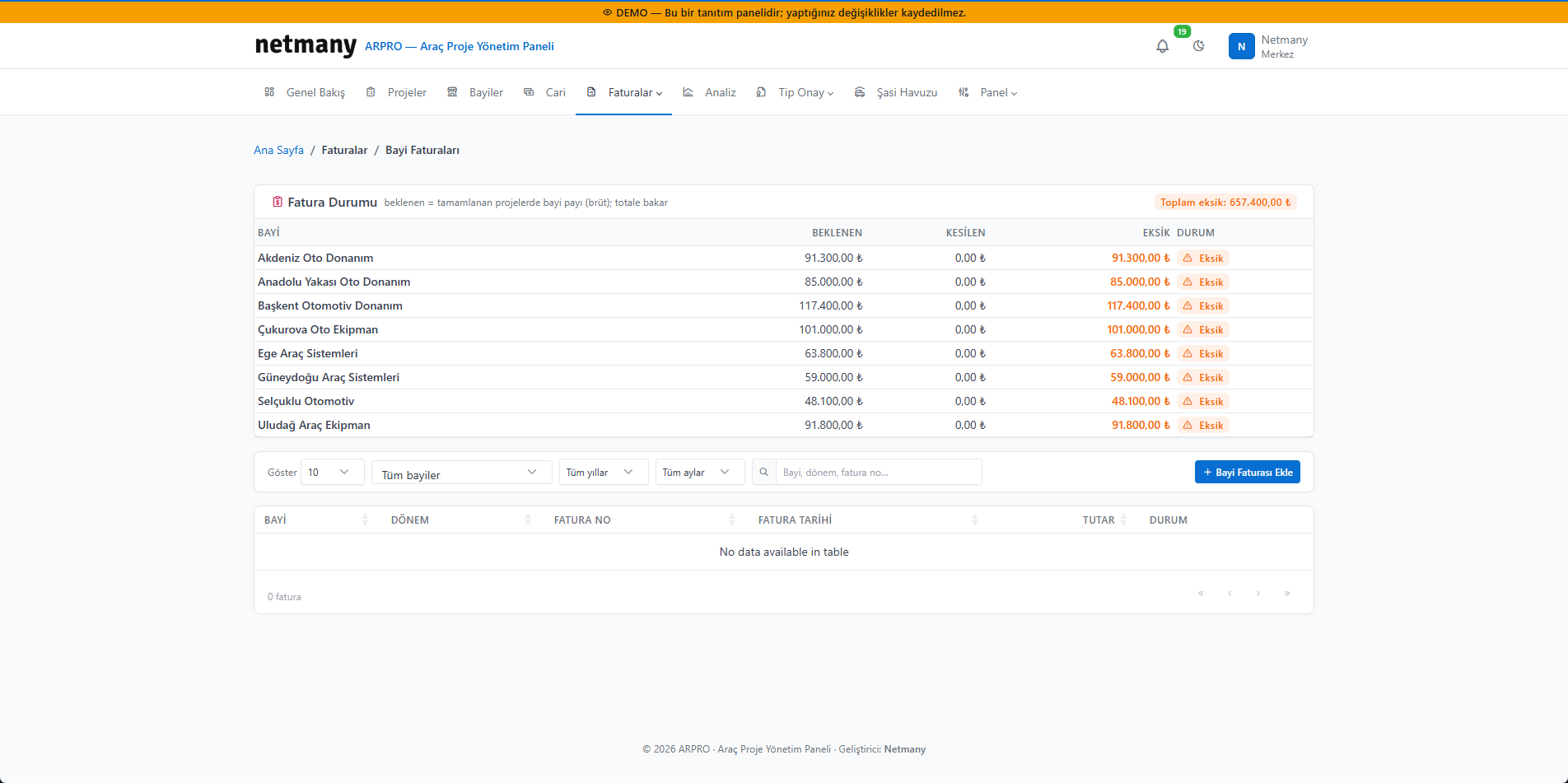
Dealers labelled Missing in the status column stand out. Filter the list by dealer, year or period to review a specific range. This makes clear “who must invoice how much for which period”.
Record the missing share with Add Dealer Invoice; as the invoice is issued, the missing amount decreases and the status updates. Because the issued invoice also posts to the account, balance and invoice tracking stay consistent with each other.
If you’d like to see dealer invoice tracking with your own project data, let us set up a custom demo.